Front-door photo guide
How to Make a Doorbell-Style Santa Video From a Photo
Take a wide phone photo of your front door or porch, then add a first name and a short message in MemeReel. AI turns the photo into a nighttime, doorbell-style video of Santa leaving a gift and speaking to the camera.
Updated · by MemeReel
Make a Santa video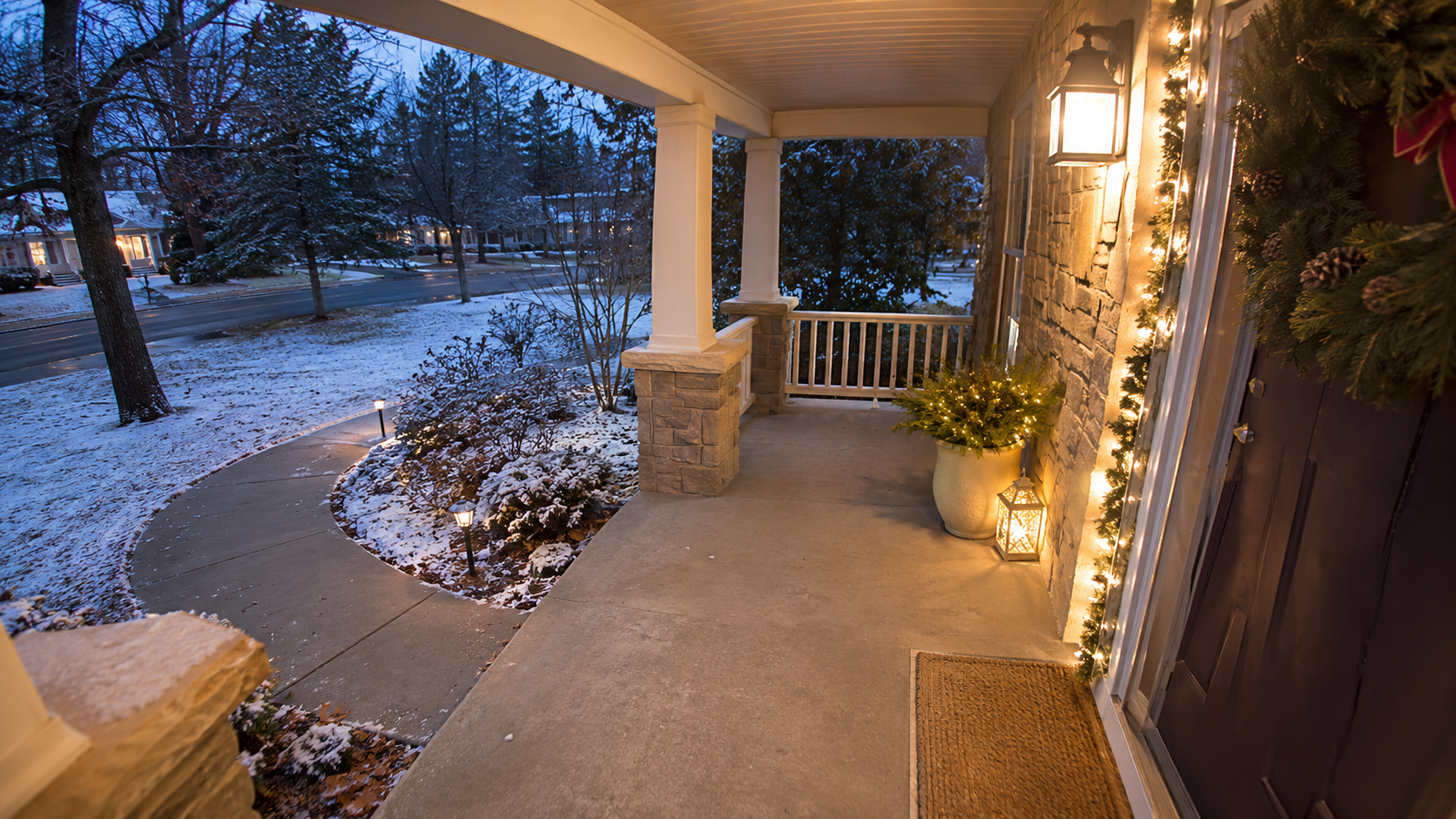
Original front-door photo
16-second video made from this photo
Where to stand and what to frame
The 2026 example above pairs an empty porch photo with a 16-second AI video. Play it with the sound on to hear Santa greet Olivia after leaving a present. If you share your own clip this season, describe it as an AI-made Christmas surprise so viewers know what they’re watching.
- 1
Choose which way the camera should face
If you want the front door in the shot, stand outside and aim back toward it. If you want a view from beside the door, aim out toward the porch and steps and keep the doorstep or landing in view.
- 2
Leave room for both the gift and Santa
Use the landscape frame on your phone. Step back until you can see a clear patch of porch floor and the path or side of the frame where Santa could walk in. A slight downward angle helps show the landing.
- 3
Check the edges before uploading
Use a sharp, well-lit photo. Move people and pets out of the shot and leave house numbers or license plates out of frame where possible. A clear daytime photo is fine. MemeReel generates the nighttime look.
How to choose a still from a doorbell camera
If you already have a doorbell camera, choose one still where the landing and the way in are visible. Crop away the app interface, timestamps or address information when you can do so without cutting out the doorstep. Use a phone photo instead if the still is blurry or only shows the far end of the path.
Upload the image as JPG, PNG or WebP, up to 10 MB. Your camera stays separate. The AI uses the image you upload as the background.
Santa Video Message AI video questions
Do I need to connect a Ring or other doorbell camera?
A phone photo is enough. If you have a clear still from any camera, save it in a supported image format and upload it as a photo.
Does the child need to appear in the photo?
No. Use an empty front-door or porch photo and enter the recipient’s first name for the greeting.
How long is the example?
The example above is 16 seconds. It shows the empty porch, Santa placing a gift and a spoken greeting for Olivia. Your result depends on your photo and message.
Make a Santa visit from your own photo
A personalized Santa video made from a front door photo.
Make a Santa videoWhat Should Santa Say? Short Personalized Santa Message Ideas